Tellmerge

Add it to Outlook

In your ribbon in about a minute.

Tellmerge is a Microsoft Office add-in. There is nothing to download to your computer and nothing to run as administrator — Outlook loads it from the web, in whichever Outlook you already use. It works on Windows, Mac, the web, and on your phone.

Get Tellmerge

Two ways in. One of them works today.

Install now WORKS TODAY

Add it from a manifest

Outlook can install an add-in from a small XML file that tells it where the add-in lives. Ours is published below. This is the same Tellmerge that is in front of Microsoft for review — not a beta, not a cut-down build.

Download the manifest

6 KB XML · then follow the three steps below

Microsoft AppSource IN REVIEW

One click, from inside Outlook

Tellmerge was submitted to Microsoft on 25 August 2026. Once it is approved you will be able to open Get Add-ins in Outlook, search “Tellmerge” and click Add — no file, no manifest. Microsoft allows itself up to four weeks to review.

Tell me when it’s live

Nothing changes for you if you install from the manifest first.

For teams & admins

Roll it out to everyone

A Microsoft 365 admin can deploy Tellmerge to a whole organisation from the Microsoft 365 admin center → Integrated apps, using the same manifest — so nobody installs anything themselves and it appears for the people you choose.

Ask about rollout

Centralised deployment · Windows · Mac · Web

Installing from the manifest

Three steps, and none of them need an administrator.

1

Save the manifest

Download tellmerge-manifest.xml and remember where it landed — your Downloads folder is fine. It is a few kilobytes of XML naming this website; it contains no code and no data of yours.

2

Open the add-ins dialog and add it

Go straight to the dialog in a browser — the menu route moves between Outlook versions, these URLs do not:

Work or school account: outlook.office.com/mail/inclientstore
Personal Outlook.com or Hotmail: outlook.live.com/mail/0/inclientstore

Then My add-ins → Custom Addins → + Add a custom add-in → Add from file, pick the file you just saved, and confirm. Outlook warns you that custom add-ins come from outside its store — that is expected, and it is what this route is.

3

Start a new message and open it

Tellmerge is a compose add-in: it appears when you are writing an email, not when you are reading one. Click New mail, then find Tellmerge → Mail merge in the ribbon — behind Apps or if the ribbon is crowded.

Installing once covers that mailbox everywhere. Add it in the browser and it is also in new Outlook for Windows, classic Outlook and Outlook for Mac on the same account, usually within a few minutes.

The first thing you see

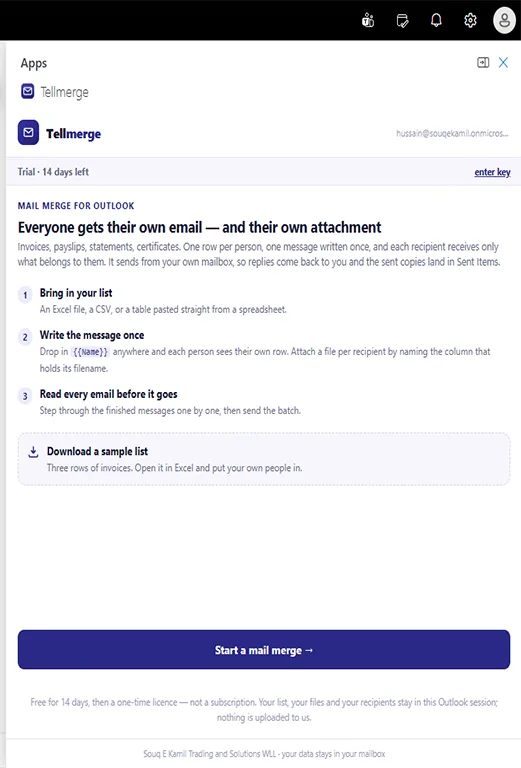
It opens by telling you what to do.

No empty screen and no tour. The pane explains the three steps, and offers a sample list of three invoices you can download and send to yourself before trusting it with real clients.

Everything works for 14 days with no card — the full product, no row limits, nothing held back — so you can run a real month-end before deciding. After that a licence is $39 once for that mailbox, not a subscription.

The Tellmerge pane the first time it opens, listing three numbered steps — bring in your list, write the message once, read every email before it goes — with a Download a sample list button and a Start a mail merge button.

Requirements

A Microsoft mailbox and a current Outlook.

Outlook on the web
Yes
New Outlook for Windows
Yes
Classic Outlook for Windows
Microsoft 365 subscription
Outlook for Mac
Yes
Outlook on iOS and Android
Yes
Mailbox
Microsoft 365, or Outlook.com / Hotmail
Gmail or Google Workspace
Not supported
Administrator rights
Not needed

Worth knowing before you install

Four things people ask first.

It has to be a Microsoft mailbox. Tellmerge sends through Microsoft’s own mail API. A Gmail or Google Workspace address will not work even if you read that mail inside the Outlook app — we would rather say so here than take your $39 first.

Nothing is uploaded. Your spreadsheet is read in the pane on your own machine and your documents are read from your own disk. The mail goes straight from your mailbox to Microsoft. See the privacy page.

Your first send asks for permission. Microsoft shows a consent screen for two things: send mail as you, and read your own name and address. That screen is Microsoft’s, and it names Souq E Kamil Trading and Solutions WLL as a verified publisher.

Removing it is one click. Same dialog you installed from. Nothing is left behind on your machine, and nothing of yours was ever on ours to delete.

Fourteen days, no card

Try it on this month’s invoices.

Install it, send three test emails to yourself, and see whether it saves you the hour you think it will. If it doesn’t, you have lost nothing but the minute it took to add.